

LinkedIn forbids any single person from maintaining multiple personal profiles. That rule is firm, and violating it can get your account permanently banned. What is allowed, and what most agencies and SDR teams actually do, is manage multiple real-person accounts, one per actual human, with strict session isolation between each. If you're scaling outreach across a team or managing client profiles, the path forward is clear: one authentic profile per person, isolated browser sessions, paced activity, and a monitoring system that catches problems before LinkedIn does. Tools like Echoza add a layer of safety by enforcing daily caps, maintaining per-profile voice settings, and keeping your team out of shared-password territory.
The short version of what you need right now:
- One personal profile per person. Never create a second one for yourself, even for a different industry or persona.
- Isolate every session. Separate browser profiles or cloud browsers, not incognito mode, not a VPN alone.
- Pace from day one. New accounts start at a small number of connection requests per day and ramp slowly.
- Watch your Account Health Matrix. If pending invites exceed 20 or your acceptance rate drops below 20%, pause immediately.
Table of Contents
- Can you have multiple LinkedIn accounts? What the policy actually says
- Proven methods to manage multiple LinkedIn accounts safely
- How LinkedIn detects multi-account abuse and the traps to avoid
- Step-by-step safe setup checklist for each managed account
- What safety features should you require from any multi-account tool?
- When and how to merge or close duplicate LinkedIn accounts
- How to switch between accounts without triggering flags
- Key Takeaways
- The part most agencies get wrong about multi-account programs
- Echoza keeps your multi-account commenting compliant and scalable
- Useful sources and further reading
Can you have multiple LinkedIn accounts? What the policy actually says
LinkedIn's User Agreement is direct: one personal profile per person. Duplicate profiles, fake aliases, and manufactured personas all violate the Terms of Service. The platform doesn't just warn you once and move on.
Graduated penalties you should know
LinkedIn's enforcement escalates in stages, and by the time you hit the later ones, recovery is difficult:
- Reduced visibility. Your posts and connection requests reach fewer people without any explicit warning.
- Activity throttles. Outbound actions get capped below normal limits, often without notification.
- Temporary restriction. You're locked out of sending invites or messages for days or weeks.
- Forced identity verification. LinkedIn demands a government ID or phone confirmation before restoring access.
- Permanent ban. The account is closed and the associated email is blocked from creating new profiles.
What's allowed vs. what's forbidden
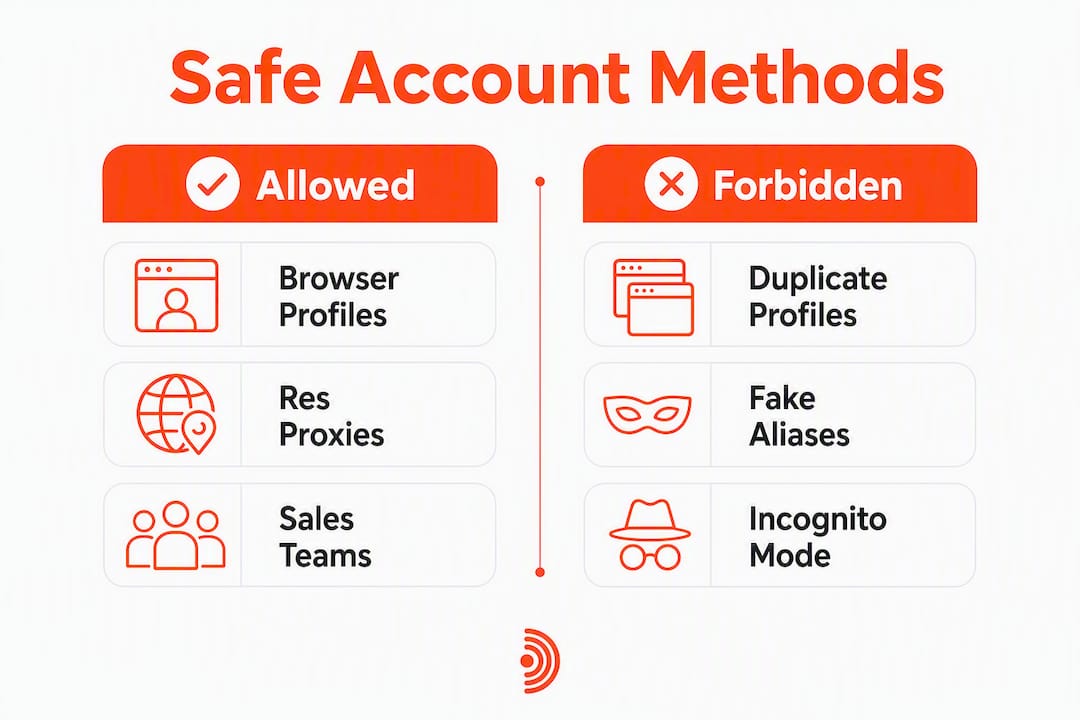
Allowed:
- Managing the LinkedIn profiles of real employees, founders, or SDRs, with their knowledge and consent
- Accessing client profiles through properly authorized credentials (never shared passwords)
- Holding admin roles on multiple Company Pages without creating extra personal profiles
- Using Sales Navigator team seats to coordinate outreach across a group
Forbidden:
- Creating a second personal profile for yourself under any name or email
- Building fake personas or aliases, even for "testing" purposes
- Using automation tools that inject JavaScript or perform mass auto-connect actions, which LinkedIn's detection systems flag explicitly
The practical translation: if you're an agency managing ten client profiles, that's ten real people, ten real accounts, each operated with their explicit permission. What you cannot do is spin up ten profiles for one person to hit ten times the weekly invite limit.
The numbers matter here. Community best-practice data puts the safe weekly connection request cap at roughly 100 invites per week for free accounts, with new accounts starting at 5–10 per day and ramping up gradually to 20–30 per day over several weeks. Exceed those figures across synchronized accounts and you're not just risking one profile.
Proven methods to manage multiple LinkedIn accounts safely
The method you choose depends on how many accounts you're managing, how often you switch between them, and whether you're running a solo freelance operation or a 20-seat agency.
Separate browser profiles
Chrome, Firefox, and Brave all support distinct browser profiles with separate cookies, storage, and login sessions. This is the simplest approach for managing two to five accounts. Each profile stays logged into one LinkedIn account and never crosses over.

Pros: Free, easy to set up, no third-party tools required. Cons: All profiles still share the same device hardware fingerprint. LinkedIn's tracking goes deeper than cookies, reading hardware info, OS, installed fonts, and screen resolution. On the same machine, separate browser profiles reduce risk but don't eliminate it.
Cloud browsers and anti-detect browsers
Tools in this category spin up fully isolated browser environments, each with a unique fingerprint, separate IP routing, and persistent session storage. Each account looks like it's coming from a different device entirely.

Pros: Strong fingerprint isolation, scalable to dozens of accounts, team-friendly. Cons: Monthly cost, setup time, and a learning curve for non-technical users.
Dedicated residential proxies
Pairing a unique residential IP with each account prevents geo-clustering, where LinkedIn notices that ten accounts are all logging in from the same IP block. Proxies alone don't solve fingerprinting, so they work best combined with cloud browsers.
Pros: Addresses IP-level detection. Cons: Proxies without fingerprint isolation are only half the solution. Many teams over-rely on IP rotation while ignoring browser-level signals, which is where modern detection actually focuses.
Sales Navigator team seats
For outreach-heavy teams, LinkedIn's own Sales Navigator product provides team-level coordination without requiring extra personal profiles. Each seat is a real person's account; the platform just gives managers visibility across the group.
Pros: Fully compliant, no detection risk, native LinkedIn support. Cons: Expensive, and it doesn't help agencies managing external client profiles.
Purpose-built SaaS platforms
Platforms designed for multi-account management, including Echoza for comment-driven engagement, handle session isolation, pacing, and role-based access in a single interface. They typically provide per-profile IP routing, persistent sessions, and automated daily activity caps as baseline features.
Pros: Operational efficiency, built-in compliance guardrails, no shared passwords. Cons: Subscription cost; requires vetting to confirm the tool actually enforces the safety features it claims.
Pro Tip: Never use incognito mode as your isolation strategy. It clears cookies but leaves your hardware fingerprint, OS, and font stack completely visible. LinkedIn can still link incognito sessions to your main account.
How LinkedIn detects multi-account abuse and the traps to avoid
Detection isn't a single trigger. It's a scoring system that accumulates signals over time, and by the time you see a warning, the score has already been building for days.
Technical detection signals
LinkedIn reads more than your IP address. The platform tracks browser fingerprints, including hardware configuration, operating system, installed fonts, screen resolution, and timezone. Two accounts logging in from the same machine, even in different browsers, share enough of that fingerprint to be linked. Automation tools that inject JavaScript or simulate clicks programmatically leave detectable patterns in how the page is accessed, separate from any login credential.
Behavioral clustering
This is the detection mechanism that catches most agency setups. When multiple accounts perform identical actions at the same time, sending the same message copy, connecting to the same target list, or posting at the same minute, LinkedIn's systems flag the pattern as coordinated automation. Behavioral clustering is more dangerous than raw volume: accounts that act identically from the same network get flagged faster than accounts with varied pacing and different activity windows.
Red flags that accelerate penalties
- pending invites exceeding a moderate number of unanswered requests
- acceptance rate falling notably over time
- Repeated security checkpoint prompts at login
- Frequent identity verification requests
- Sudden drops in post reach with no content change
When a warning appears, the immediate triage is simple: stop all outbound activity on that account, withdraw the oldest 10–15 pending invites staggered over several days, and let the account rest for 5–7 days before reintroducing any activity at lower volumes.
Step-by-step safe setup checklist for each managed account
Follow this sequence every time you onboard a new LinkedIn account into a managed program.
- Confirm ownership and consent. Get written confirmation from the account holder that they authorize managed access. Never proceed without it.
- Complete the profile. A profile with a real photo, current employer, and filled-out experience section looks human. Sparse profiles attract early scrutiny. Use the LinkedIn profile optimization guidance as a baseline.
- Establish consistent location and device history. Log in from the same geographic location and the same browser environment for the first two weeks. Rapid location switching is a detection signal.
- Enable two-factor authentication. Do this before any outreach begins.
- Set up role-based access. If a team member will operate the account, use a management platform's delegation feature, not a shared password.
- Begin the warm-up period. Weeks 1–2: profile views, post reactions, and a handful of comments only. No connection requests yet.
- Ramp connection requests gradually. Week 3: 5–10 connection requests per day for new accounts. Weeks 4–6: gradually increase to 20–30 per day. After six weeks of clean activity, you can approach the community-standard ceiling of 20–30 connection requests per day.
- Record baseline metrics. Before scaling, log the starting acceptance rate, pending invite count, and weekly send volume. These are your reference points for the Account Health Matrix.
- Assign the account to a sender rotation. If you're running multiple accounts, stagger their activity windows so that they don't act simultaneously.
- Schedule a weekly health review. Block 15 minutes every Monday to check the matrix.
Account Health Matrix
| Metric | Green (safe) | Yellow (watch) | Red (pause) |
|---|---|---|---|
| Acceptance rate | Above 30% | 20–30% | Below 20% |
| Pending invites | Under 20 | 20 | Above 20 |
| Daily sends | Under 20 | 20–30 | Above 30 |
| Security checkpoints | None | 1 in 30 days | 2+ in 30 days |
When any metric hits red, pause outbound activity on that account immediately. Don't wait to see if it resolves on its own. The agency playbook standard is to catch problems 3–5 days before LinkedIn's automated systems escalate them.
What safety features should you require from any multi-account tool?
The tool category matters less than the specific safety features it enforces. Before committing to any platform, verify it provides all of the following:
- Per-profile IP isolation. Each account routes through a unique IP address, not a shared pool.
- Unique browser fingerprints per profile. Not just separate cookies — distinct hardware and OS signals.
- Daily activity caps with hard limits. The tool should refuse to exceed the cap, not just warn you.
- Role-based permissions. Team members access accounts through delegated roles, never shared passwords.
- Review-and-approve workflow. Especially for comment automation, every draft should require human approval before it posts.
- Unified inbox and audit logs. Centralized visibility across all accounts, with a change history.
Comparison: approaches to multi-account management
| Approach | Session isolation | Anti-detection method | Team features | Setup effort | Pacing controls | Cost model |
|---|---|---|---|---|---|---|
| Browser profiles | Partial (cookies only) | None beyond cookie separation | None | Low | Manual | Free |
| Cloud/anti-detect browsers | Strong (full fingerprint) | Unique fingerprint per profile | Moderate | Medium | Manual | Monthly subscription |
| Dedicated proxy + fingerprint tools | Strong (IP + fingerprint) | IP + fingerprint masking | Low to moderate | High | Manual | Per-proxy + tool fee |
| Native LinkedIn seats (Sales Navigator) | Native | Fully compliant | Strong | Low | LinkedIn-enforced | Per-seat subscription |
| Purpose-built SaaS (e.g., Echoza) | Strong | Per-profile isolation + pacing | Strong (roles, delegation) | Low | Automated, built-in | Tiered SaaS subscription |
Daily workflow for a healthy multi-account program
- Morning: Run a 5-minute health check across all accounts. Flag any that hit yellow or red thresholds.
- Rotation: Stagger sender activity across accounts so no two accounts act within the same 30-minute window on the same target list.
- Inbox sweep: Review replies and comments in a unified inbox rather than logging into each account separately.
- Content approval: Review and approve scheduled comments or messages before they go out. Never let automation post without a human sign-off.
- Weekly: Pull acceptance rate and pending invite data. Update the Account Health Matrix. Rest any account that's been running at high volume for more than three consecutive weeks.
Pro Tip: The 3/2/1 rule from agency practice: operate at least 3 active sender accounts to dilute risk, cap connection requests at 20–30 per day per account, and track 1 core metric (acceptance rate) as your early-warning signal.
For deeper guidance on safe commenting automation and how approval workflows protect account health, the Echoza blog covers the mechanics in detail.
When and how to merge or close duplicate LinkedIn accounts
Duplicate accounts happen for legitimate reasons: an old email address, a profile created years ago, or a client who forgot they had an account. The fix is straightforward, but the order of operations matters.
- Identify both accounts. Log into each one separately and confirm which has the stronger network, more complete profile, and more recent activity. That's your surviving account.
- Export connections from the account you're closing. LinkedIn lets you download your connections list as a CSV. Use it to send personalized reconnect invites from the surviving account after the merge.
- Transfer content where possible. Copy any posts, articles, or recommendations you want to keep. LinkedIn doesn't migrate content automatically.
- Use LinkedIn's official merge or close guidance. The LinkedIn Help Center walks through the process for duplicate accounts. Follow it exactly rather than simply deleting the secondary account.
- Confirm 2FA and admin roles on the surviving account. Before closing anything, make sure the account you're keeping has two-factor authentication enabled and that any Company Page admin roles are transferred.
- Update Company Page admins. If the closing account held admin rights on any Company Pages, reassign those roles first. Closing an account without doing this can lock you out of the page.
Post-close checklist
- Withdraw any pending invites on the closed account before closing it
- Audit connected third-party apps on the surviving account and revoke any you don't recognize
- Re-warm the surviving account with conservative activity for two weeks if it's been dormant
- Confirm that the closed account's email is no longer associated with any active LinkedIn session
If you can't access one of the accounts
Don't create a new profile to replace it. That's the exact scenario LinkedIn's policy targets. Instead, use LinkedIn's account recovery flow, which involves verifying your identity via email or phone. If that fails, contact LinkedIn Support directly and explain the situation. Claiming a duplicate account you can't access is a common support case and usually resolvable without creating a new profile.
For Company Pages specifically, never share personal login credentials to grant access. Use admin role delegation so managers can act on the page without touching anyone's personal account password.
How to switch between accounts without triggering flags
The mechanics of daily account switching are where most teams introduce unnecessary risk. Here's what works.
What to do:
- Assign each LinkedIn account to a dedicated browser profile or cloud session. Open that profile only when you need to work that account, and close it when done.
- Use LinkedIn's native page-switching feature for Company Pages. The dropdown in the top navigation lets you switch between personal profiles and pages you administer without logging out.
- For managed client accounts in a SaaS platform, use the platform's account-switching interface rather than logging directly into LinkedIn in a separate tab.
- Keep sessions persistent. Logging in and out repeatedly from the same account is itself a behavioral signal.
What to avoid:
- Jumping between accounts on the same browser tab or in the same browser window
- Using a VPN as your only isolation method. VPNs change your IP but leave your browser fingerprint intact.
- Sharing login credentials with team members. Role-based access through a management platform is the only safe delegation method.
- Switching geographic locations rapidly. If one account logs in from New York and another from Los Angeles within the same hour on the same device, that's a flag.
Daily routine checklist:
- Open each account's dedicated browser profile or cloud session at the start of the day
- Run a quick health check (pending invites, acceptance rate, any security prompts)
- Complete scheduled activity within that session's designated window
- Close the session before opening another account's environment
- Log any unusual prompts or verification requests in your monitoring system
Key Takeaways
Managing multiple LinkedIn accounts safely requires one authentic profile per person, strict session isolation, and consistent pacing from day one.
| Point | Details |
|---|---|
| One profile per person | LinkedIn's User Agreement prohibits duplicate personal profiles; violations lead to suspension or permanent bans. |
| Session isolation is non-negotiable | Browser profiles reduce cookie overlap but don't mask hardware fingerprints; cloud browsers or anti-detect tools are required for full isolation. |
| Pace from the start | New accounts should start at 5–10 connection requests per day, ramping to 20–30 per day only after several weeks of clean activity. |
| Monitor an Account Health Matrix | Flag accounts when pending invites exceed 20 or acceptance rate drops below 20%; pause before LinkedIn escalates. |
| Echoza for comment-driven engagement | Echoza enforces per-profile voice settings, daily caps, and a review-and-approve workflow, keeping multi-account commenting compliant and auditable. |
The part most agencies get wrong about multi-account programs
The most common failure mode isn't a technical one. It's operational. A team sets up clean browser profiles, assigns dedicated IPs, and then runs every account through the same message template on the same Monday morning cadence. Within three weeks, LinkedIn's behavioral detection has flagged the pattern, and the team is scrambling to triage three accounts simultaneously while the fourth goes unmonitored.
The fix isn't more sophisticated tooling. It's treating the program like a triage system from day one. That means staggered send windows, varied message copy, and a weekly health review that happens before the metrics turn red, not after. The Account Health Matrix isn't a dashboard you check when something feels wrong. It's the thing that tells you something is about to go wrong while you still have time to act.
Three lessons that hold up across every agency setup:
First, automate your monitoring before you automate your outreach. Knowing that an account's acceptance rate dropped 18% this week is more valuable than sending 50 extra connection requests.
Second, session isolation is the floor, not the ceiling. Getting fingerprints and IPs right is the baseline. The real work is behavioral: varied timing, different message angles, and sender rotation that makes each account look like a distinct human being.
Third, warm-up is not optional. Every team that skips it pays for it. A two-week conservative ramp costs almost nothing. An account restriction costs weeks of recovery time and pipeline momentum.
Echoza's role in a program like this is specific: it handles the comment layer, drafting responses in each account holder's voice, routing them through an approval queue, and scheduling them across working hours so no two accounts comment on the same post at the same minute. That's the kind of friction reduction that actually matters at scale.
Echoza keeps your multi-account commenting compliant and scalable
Running comment-driven engagement across multiple LinkedIn accounts manually means constant context-switching, inconsistent voice, and no audit trail. Echoza solves all three. It ranks your feed to surface the highest-reach posts in your niche, drafts comments in each account holder's distinct voice based on their past activity and style, and holds every draft in an approval queue before anything goes live.
The safety architecture maps directly to the checklist covered in this guide: per-profile session handling, built-in daily activity caps that can't be overridden, role-based team access with no shared passwords, and scheduled posting that distributes comments across working hours rather than clustering them. For agencies managing five or fifty accounts, that's the difference between a program that scales and one that burns accounts.
Echoza runs on a tiered subscription with a 14-day free trial. The recommended first step: audit your current multi-account setup against the Account Health Matrix above, identify any accounts showing yellow or red signals, and onboard the clean ones into Echoza's trial to see how the approval workflow fits your team's rhythm.
Useful sources and further reading
The sources below are worth bookmarking for policy verification and operational depth:
- Echoza: How to automate LinkedIn comments without getting banned — Practical breakdown of safe commenting automation, approval workflows, and pacing controls.
- Echoza: LinkedIn automation tool warning — what it means — Explains the technical triggers behind LinkedIn's automation warnings and how to avoid them.
- Echoza: LinkedIn metrics that actually drive professional growth — Guidance on which metrics to track for account health monitoring, including acceptance rate and engagement signals.
| Source | Best used for |
|---|---|
| LinkedIn Help Center (duplicate accounts) | Policy verification and official merge/close procedure |
| Echoza blog (automation safety) | Practical pacing, approval workflows, and comment automation |
| Send.win multi-account guide | Activity cap benchmarks and fingerprinting background |
| Oppora.ai detection guide | Understanding what automation patterns LinkedIn flags |