

Adding hashtags on LinkedIn is straightforward: type the # symbol directly in the post composer, followed by your keyword, and LinkedIn's auto-suggest feature will surface trending options. For articles, you can embed hashtags in the body or add them in the Compose box that appears after you hit Publish. In comments, click the comment field and type # the same way. A few rules apply everywhere: no spaces, no punctuation inside the tag, and keep it clickable.
Here's the quick-reference breakdown:
- Posts: Click "Start a post," type
#followed by your keyword, and select from suggestions or finish typing your own. - Articles: Use
#anywhere in the article body, or add hashtags in the Compose box when sharing the article to your feed. - Comments: Click into the comment field, type
#and your keyword. Keep it to one or two tags, directly tied to the discussion. - Readability: Place hashtags at the end of posts, not woven mid-sentence, so your opening lines stay clean.
- Accessibility: Write multi-word tags in PascalCase (#DigitalMarketing, not #digitalmarketing) so screen readers parse them correctly.
Table of Contents
- What a smart LinkedIn hashtag strategy looks like in 2026
- How LinkedIn's AI actually uses your hashtags now
- Common mistakes people make with hashtags in LinkedIn comments
- How Echoza uses AI to make hashtag engagement work harder for you
- How to add hashtags in LinkedIn comments, step by step
- Tailoring hashtags to each LinkedIn content type
- Key Takeaways
What a smart LinkedIn hashtag strategy looks like in 2026
The optimal mix is a moderate number of hashtags per post, structured around different tiers: one broad hashtag for categorical reach, some medium-sized hashtags for a defined audience, and a few niche tags for conversations that actually matter to your work.
- Broad (1M+ followers): One tag like #Marketing or #Leadership anchors your content to a major topic category.
- Medium (10K–500K followers): Two tags like #B2BSaaS or #ContentStrategy pull in an audience that's relevant without being impossibly crowded.
- Niche (under 10K followers): One or two tags like #DemandGen or #BuildInPublic connect you to tight communities with real engagement.
Avoid generic tags like #Motivation or #Success. They have millions of posts and almost no signal value. On the other end, tags with fewer than 1,000 posts are too quiet to move the needle. Use LinkedIn's search bar to check post volume before committing to any tag.
Build a small rotation library of 10–15 hashtags across your core topics. Swap sets between posts rather than reusing the same three every time. This keeps your content from looking repetitive to the algorithm and exposes you to slightly different audience segments over time.
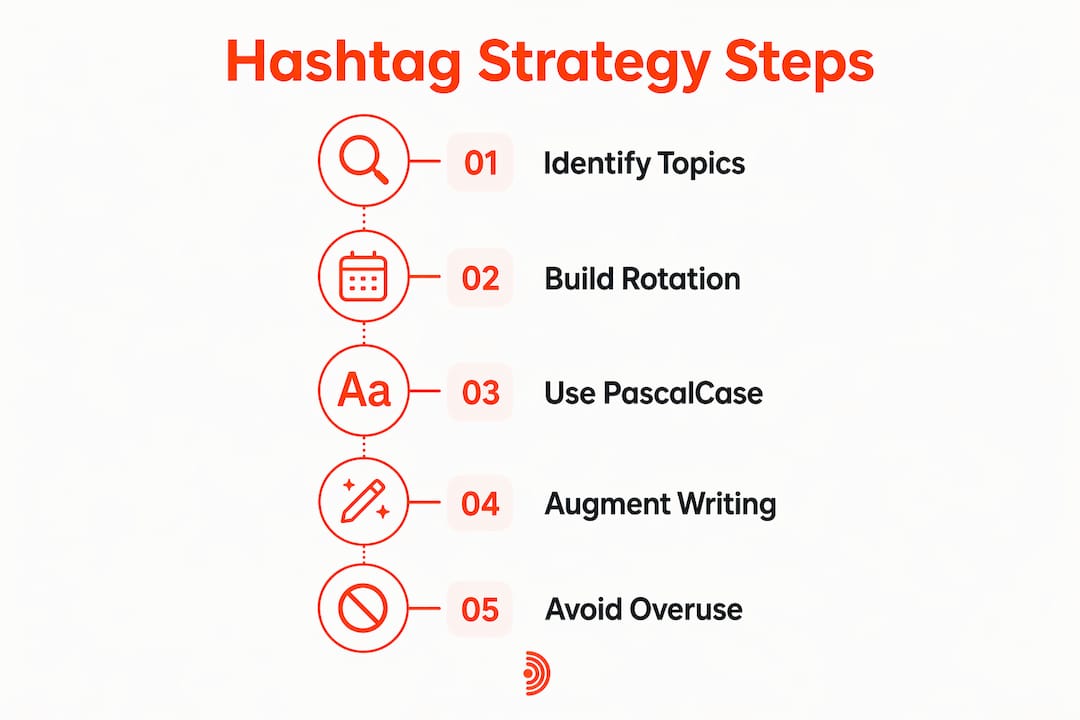
Pro Tip: Write every multi-word hashtag in PascalCase (#SocialMediaMarketing instead of #socialmediamarketing). Screen readers announce each capitalized word separately, which improves accessibility and makes your tags easier for humans to scan at a glance.
How LinkedIn's AI actually uses your hashtags now
LinkedIn removed hashtag following in 2024, which changed the game considerably. Hashtags no longer drive discovery through follower feeds. Instead, they function as semantic signals that help LinkedIn's AI classify your content and route it to relevant audiences.

Think of hashtags as labels you're handing to the algorithm, not billboards you're putting up for people to find. The AI reads them alongside your full post text to understand what the content is about and who should see it. That's why niche-specific tags outperform broad ones: a tag like #PLGMarketing tells the algorithm something precise, while #Business tells it almost nothing.
Neal Schaffer frames it well: hashtags augment keyword-rich writing, they don't replace it. A post with sharp, specific language and three well-chosen hashtags will outperform a vague post with ten tags every time. Hashtag placement within the post doesn't affect algorithmic treatment, so put them where they help readability, which is almost always at the end.
Common mistakes people make with hashtags in LinkedIn comments
Comments are underused as a hashtag placement, but they come with real risks if you handle them carelessly.
- Limit to 1–2 tags per comment. Excessive hashtags in comments read as spam to both the algorithm and the humans in the thread.
- Stay on topic. A hashtag in a comment only adds value when it's directly tied to what's being discussed. Dropping #Entrepreneurship into a comment about supply chain logistics looks forced.
- Skip the diluted tags. #Trending and #Motivation are the comment equivalent of noise. They signal nothing and can flag your comment as low-quality.
- Reinforce, don't redirect. The best use of a hashtag in a comment is to reinforce the post's topic, not to pull attention toward a different subject.
- Protect your credibility. On LinkedIn, your comment history is visible. A pattern of hashtag-stuffed comments damages your professional reputation faster than it helps your reach.
How Echoza uses AI to make hashtag engagement work harder for you
Knowing the right hashtags is one thing. Consistently showing up in the right conversations with the right comment, at the right time, is where most LinkedIn users fall short. That's the gap Echoza fills.
Echoza scans your feed to surface high-reach discussions where your voice belongs, then drafts personalized comments that reflect your actual writing style. It applies hashtag logic automatically, keeping tags relevant to the discussion and within the 1–2 tag limit appropriate for comments. You review and approve every comment before it goes live, so nothing posts without your sign-off.
The scheduling feature distributes your approved comments across working hours, which keeps your activity pattern looking natural to LinkedIn's algorithm. For anyone managing multiple accounts or client profiles, Echoza handles separate voice profiles so each account sounds like itself. Users report measurable increases in profile views and direct client outreach after consistent use, which tracks: showing up in active, relevant conversations compounds over time in a way that posting alone rarely does.
If you want to understand how LinkedIn hashtag relevance has shifted with AI-driven distribution, pairing that knowledge with a tool that automates the execution is where the real efficiency gain lives.
Ready to turn your comments into a client pipeline? Start with Echoza and let the AI handle the heavy lifting while you stay in control of every word.
How to add hashtags in LinkedIn comments, step by step
- Find the right post. Look for active discussions in your niche where you have something genuine to add. High-engagement posts give your comment more visibility.
- Click the comment field. Tap "Add a comment…" beneath the post to open the text input.
- Write your comment first. Draft the actual substance of your reply before thinking about hashtags. The comment should stand on its own.
- Add one or two hashtags at the end. Type
#followed by your keyword. Choose tags that are directly relevant to the post's topic, not your general interests. - Check the tag before posting. Confirm it's clickable (no spaces, no punctuation) and that it has an active community behind it. A quick LinkedIn search takes ten seconds.
- Post and monitor. Watch whether the comment drives profile visits or follow-on replies. That feedback tells you whether the tag choice was on target.
Tailoring hashtags to each LinkedIn content type
Not every content format deserves the same hashtag treatment, and using the same set everywhere is a missed opportunity.
Posts are your highest-leverage placement. Use the full 3–5 hashtag mix here, with your broad anchor tag plus niche-specific additions. Video and image posts get a measurable engagement lift from hashtags; text-only posts benefit less, so drop to 1–2 if you're prioritizing reach on a plain-text update.
Articles work differently. Embed hashtags in the article body where they fit naturally, then add a separate set in the Compose box when you share the article as a post. That second layer targets feed browsers who may never click into the full article, effectively doubling your distribution surface.
Comments call for restraint. One highly relevant tag, placed at the end, is usually enough. Two is the ceiling. The goal is to reinforce the conversation's topic, not to broadcast your own hashtag library into someone else's thread.
Business pages no longer use traditional hashtags. LinkedIn rebranded page hashtags as "Specialisms" in late 2024. Add up to 20 keyword phrases under your page's Details section; they function like hashtags without the # symbol and surface your page in relevant searches. For B2B LinkedIn marketing, keeping those Specialisms current is worth the five minutes it takes.
Understanding visitor intent behind the content people engage with can sharpen which hashtag communities are worth targeting, especially when you're deciding where to focus your commenting activity.
Key Takeaways
Effective LinkedIn hashtag use in 2026 means treating tags as AI classification signals, not discovery tools, and pairing them with quality writing and consistent comment engagement.
| Point | Details |
|---|---|
| Use 3–5 hashtags per post | One broad, two medium, and one or two niche tags gives the best reach-to-relevance balance. |
| Hashtags are AI signals now | LinkedIn removed hashtag following in 2024; tags now help the algorithm classify and route your content. |
| Comments need restraint | Limit to 1–2 highly relevant hashtags per comment to avoid spam flags and protect credibility. |
| PascalCase improves accessibility | Writing #DigitalMarketing instead of #digitalmarketing helps screen readers and improves human readability. |
| Automation compounds results | Tools like Echoza apply hashtag logic consistently across comments, driving profile views and client outreach over time. |